Your Home Feed
This is your main landing place once you log in. On the left-hand column is information about you, including your profile summary, the communities you are a part of, and your recently followed content.
The middle column shows you all the latest discussions, events and resources from your communities.
- Click the discussion subject to see the full thread or click 'View Reply' to get directly to the latest post.
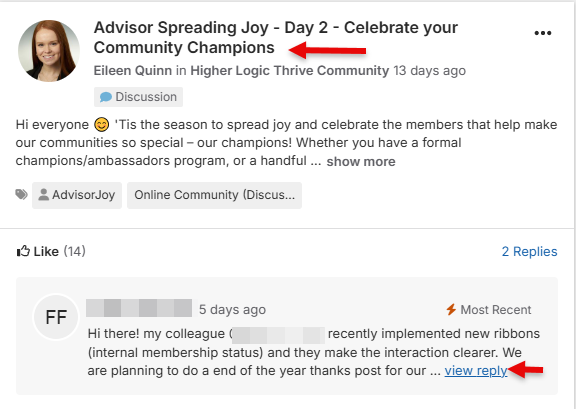
The right-hand side gives you easy access to items you'll likely need via the Quick Links sections. This column also highlights upcoming events and tracks our users' engagement. Maybe you'll see your face show up!
Your Profile
Access your profile by clicking on the Profile Panel at the top left of the main Activity Feed or by clicking the small profile picture at the top right of the screen and then selecting "Profile."
- Add a headshot
- Add a bio
- Fill out the demographic information
Profile Settings
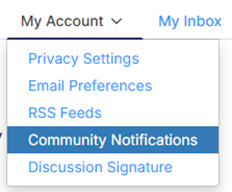
Customize your profile settings: While on your profile page, click on the tab for My Account > Community Notifications. Here, you can set up how you want to receive emails from the community, how much of your profile you want visible to other members, design the signature area that appears under your discussion posts, and more. If you have any questions about what a certain setting means, email hug@higherlogic.com for help.
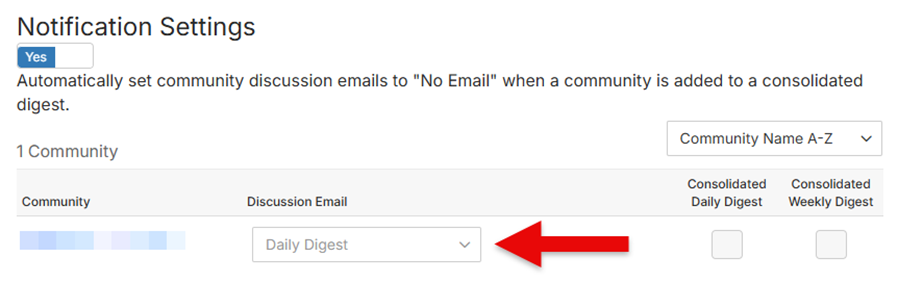
Email Delivery Options: Choose your desired frequency for each community you're a part of:
- Daily Digest: Email daily for each community. This option also allows you to reply to the discussion via email without logging in
- Real-Time: Instant alerts for each post
- Daily Consolidated: Combines all selected communities into one daily email
- Weekly Consolidated: Combines all selected communities into one weekly email
- Note: For consolidated digests, make sure to set the Discussion Email dropdown to "No Email."
Join the Conversation
Post a Message:
- Select “Create” in the top right corner of the page and choose "Discussion Thread"
- Select your desired community to post to from the dropdown menu of communities you're a part of.
- Choose if you want to post a Discussion or a Question style post.
- Discussion: For open-ended conversations. Examples:
- "What's the best way to.."
- "How does your organization.."
- Question: When you’re looking for a factual answer. Examples:
- "How can I turn on a specific feature..."
- "Where can I find a resource on.."
- You can upload attachments - attachments will automatically be added to the specified community library.
- You can @mention other HUG members.
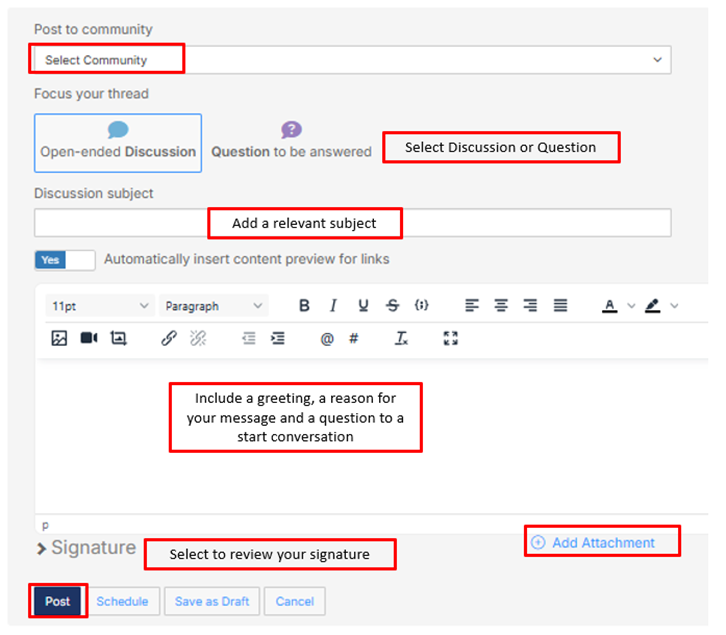
- Save Drafts: You can save a draft of the post. The system will also automatically start saving your message once you start adding content.
- Schedule Posts: You can schedule a post to go live at a certain time.
- Access scheduled posts and drafts on your Profile > My Contributions tab > List of Contributions.
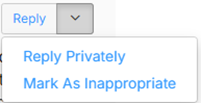
Reply to a Discussion:
- Reply: Reply to the entire thread.
- Reply Privately: Sends a private response to the member’s community inbox.
- Mark As Inappropriate: If a member's post clearly violates our Code of Conduct, you can flag it for review by our team.
What now?
- Let us know you're here: Say hello and share what you are hoping to gain by participating.
- Ask questions: What do you want to know more about? Have a question about anything from professional development to everyday problems? There's someone out there with the answer.
- Share ideas: Is there a hot topic you want to discuss? How about a lesson you've learned that might help your fellow members? Start a discussion thread to give others a peek inside your world or to demonstrate your expertise on a topic.
- Give feedback: Use your knowledge and experience to answer other members' questions. Just click Reply to the right of any discussion post or comment underneath a library entry.