Using the Event App
Build Your Agenda
Everything you need to plan your Super Forum experience is right here in the Schedule tab. Explore conference activities, keynotes, sessions, and more. Search by session or speaker, create your personalized agenda, and schedule one on one appointments to make the most of your time.

Under the Schedule tab you can Search and Filter. The schedule defaults to sessions selected, remove this filter to view all sessions.

Add a session to your agenda while on the session details and tap the calendar icon. Once its filled in, it's securely embedded in your agenda.
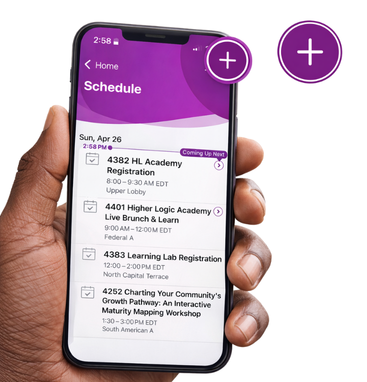
You also have the ability to add an appointment to your schedule. From work meetings to flight reminders, adding it to your agenda will make sure you won't forget.
Build Knowledge
Attendees can download handouts, take notes, access destination information, complete surveys, and more.
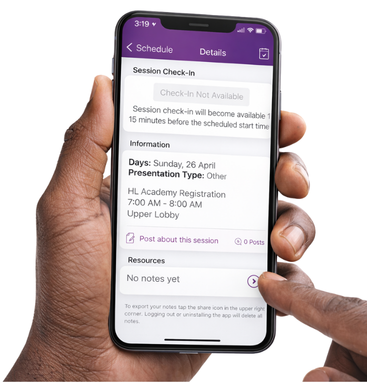
Take session notes from the Session Details if your pen & paper aren't handy.

Download resources, access live polling and take session surveys all under the Resources section.
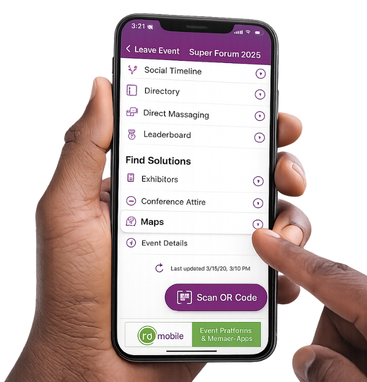
Under the More tab you'll find Event Details like Maps, Location Information, Hours, Lost & Found, Help, and more.
Building Engagement
Attendees can connect with other attendees & sponsors through posts, messaging & stay up-to-date on the latest event news & happenings through posts.

In Details tap “Post about this session” to make a public comment. This can be handy for continuing a discussion or posing a question you think of later.
View all the posts on a session by tapping the View Posts.
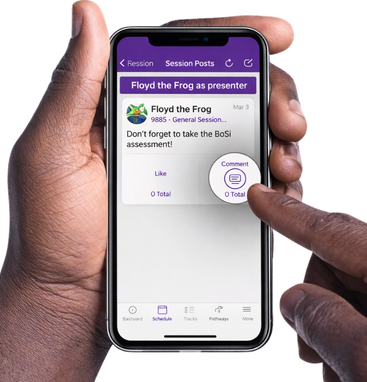
Comments can be Liked and Replied to in the Sessions feed.
Build Your Network
Through Business Card Exchange attendees can quickly and safely exchange business cards with each other by scanning QR codes on the mobile app.

Look for a circular QR Scanner icon at the bottom right corner of the main event menu. Tapping the icon will open the scanner tool and then tapping the QR code on the bottom will enlarge it.

To initiate a card exchange both people need to open their QR Scanner and simply point at another’s QR code.

All business cards collected by an attendee are saved in their Registrant Bag.